
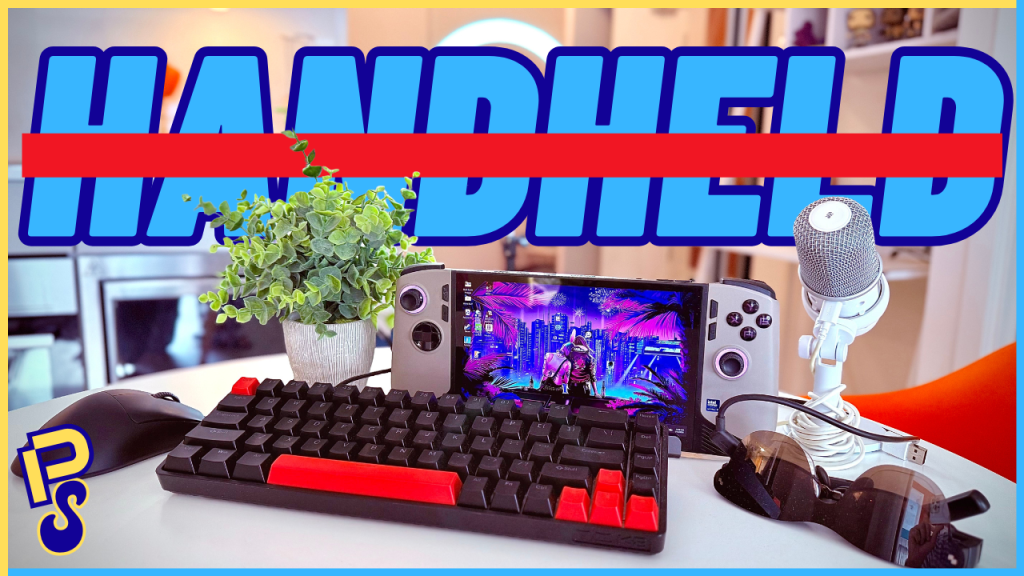
It’s been almost a year since I delved into the world of handheld PC gaming with the MSI Claw 8AI+. For the first half of that year, I’ve used this beige beast on my couch, lying comfortably in bed—praying that I don’t doze off and have those beefy 800 grams crush my nose—on a plane, on a train, and in many a hotel room; playing triple-A games with surprisingly great visuals and framerates thanks to that Core Ultra 7-258V processor.
It’s been a dream come true, to be honest. To have such power and play whatever I want, wherever I want, in such a well-rounded package. A package that I’ve reviewed in more detail here, if you’re curious to learn more. It’s a device that I’ve yearned for, for many, many years. I envisioned using a handheld device like this, playing all of my console games on the go, ever since I was a kid. What I didn’t expect, however, was that for the latter half of my time with this device, I’d be using it primarily as a desktop PC, rather than a handheld one.
That’s right, for the past five(ish) months, I’ve been using my MSI Claw 8AI+ as a desktop replacement—as my primary PC. All of the scripts for my videos over these past months, all of the thumbnails, and much of the work for my day job have been done on this handheld. This wasn’t the plan, initially. As someone who has always been interested in PC gaming but hasn’t been a Windows guy since XP, I was thinking I’d use the Claw somewhat as a test bed to get acclimated to Windows and PC gaming. Then, once I’d gotten the handle on things and saved up enough dabloons, I’d work on building my own rig with all the fancy bells and whistles.
But then, tech corporations began giving me (and every other consumer) the finger and started artificially inflating PC part prices (RAM, specifically) to fund their artificial dreams of an artificial future, while having a circle-jerk of capitalism that’s definitely, most certainly, not a bubble. Seriously, I hate this timeline.
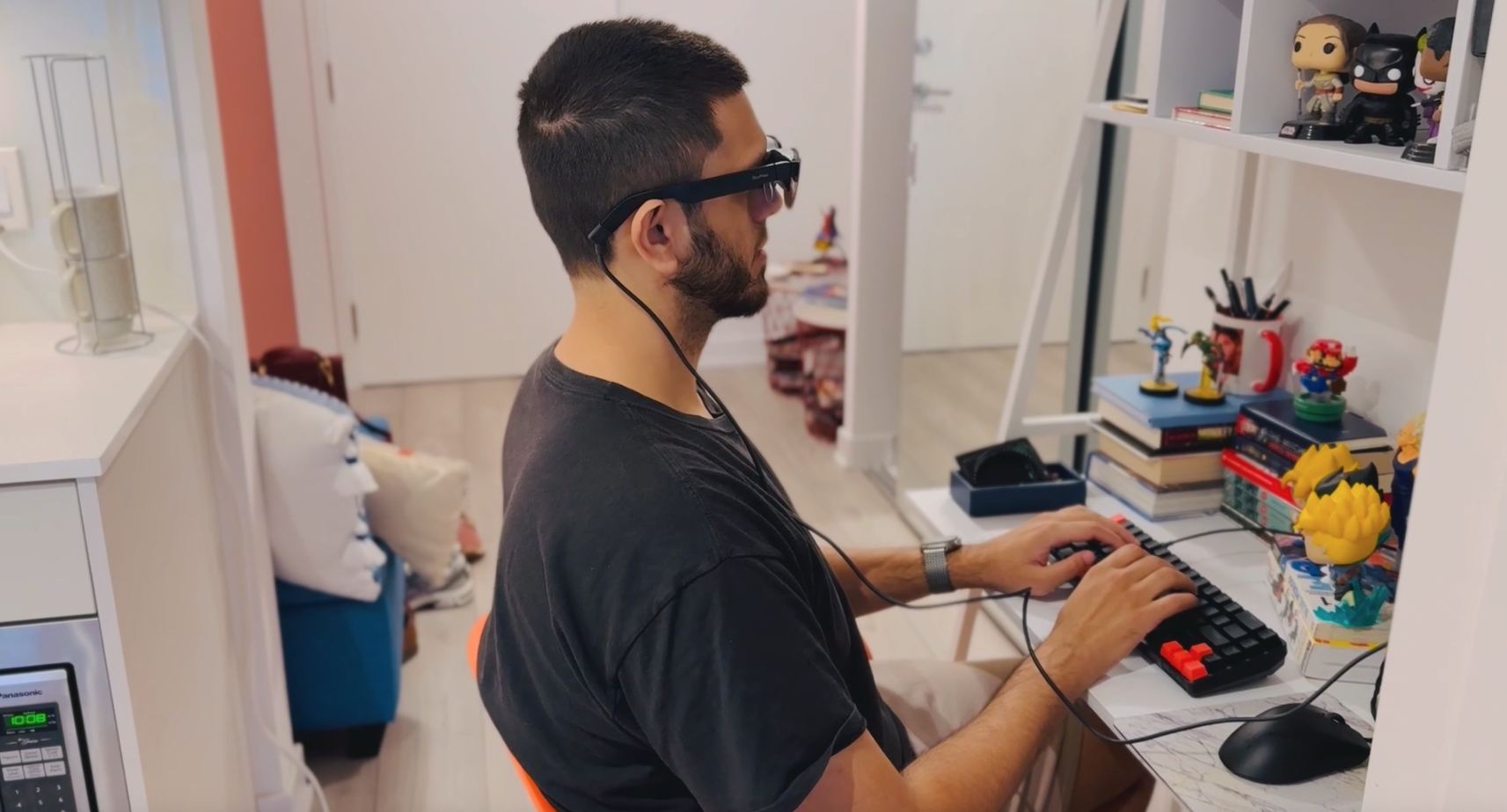
And so, I thought, “You know what? I already have a PC.” And a damn good one, at that. One that has 32GB of RAM, which soon may be worth enough to pay my next month’s mortgage at this point. So, why not turn it into a Switch-like situation where I can have it be a desktop for when I need it, and a handheld for when I want it? That’s exactly what I did, and so let me show you all of the accessories I’m using that have turned my MSI Claw 8AI+ into a desktop PC.
The Dock
The first thing I needed to turn my Claw into a desktop was a dock. Something to not only prop up the handheld, but also to connect all of my peripherals, of which there are a few. Thankfully, when I purchased my Claw off of a guy on Facebook Marketplace, he generously included not only a carrying case, but also a docking station from JSAUX. It has a decent amount of IO, with three USB 3.0 ports, an HDMI port that can output 4K 120Hz, ethernet, and a USB-C port for passthrough charging.

Now, even though the Amazon page says it supports the MSI Claw 8, it’s not a perfect fit. The cable that connects the dock to the handheld is quite short and was clearly made to fit smaller handhelds like the Steam Deck. As such, I have to slide my Claw all the way down the dock so that the Claw’s USB-C port lines up more easily and the cable can reach it. It’s a minor annoyance every time I have to dock and undock, but one that I can live with.
The KBM
A keyboard and mouse are arguably just as important as the innards of any desktop PC. Also, let’s face it, Windows was not made for touch input, and I’m reminded of that every time I have to use my Claw as a handheld. Now, even though I’m a writer, I’ll admit that I’m no connoisseur when it comes to keyboards, and even more ignorant when it comes to mice. I’ve used Apple’s chiclet keyboards on the MacBook and the one on their Smart Folio cover for the iPad Pro (which, I won’t lie, is surprisingly satisfying) for the past decade. I know some of you nerds love your brown and red switches on your mechanical keyboards, and competitive FPS players are very particular about their mouse of choice. For me, although I was willing to dip my toe into the world of mechanical keyboards and gaming mice, I wasn’t about to shell out an arm and a leg for a pair of peripherals.
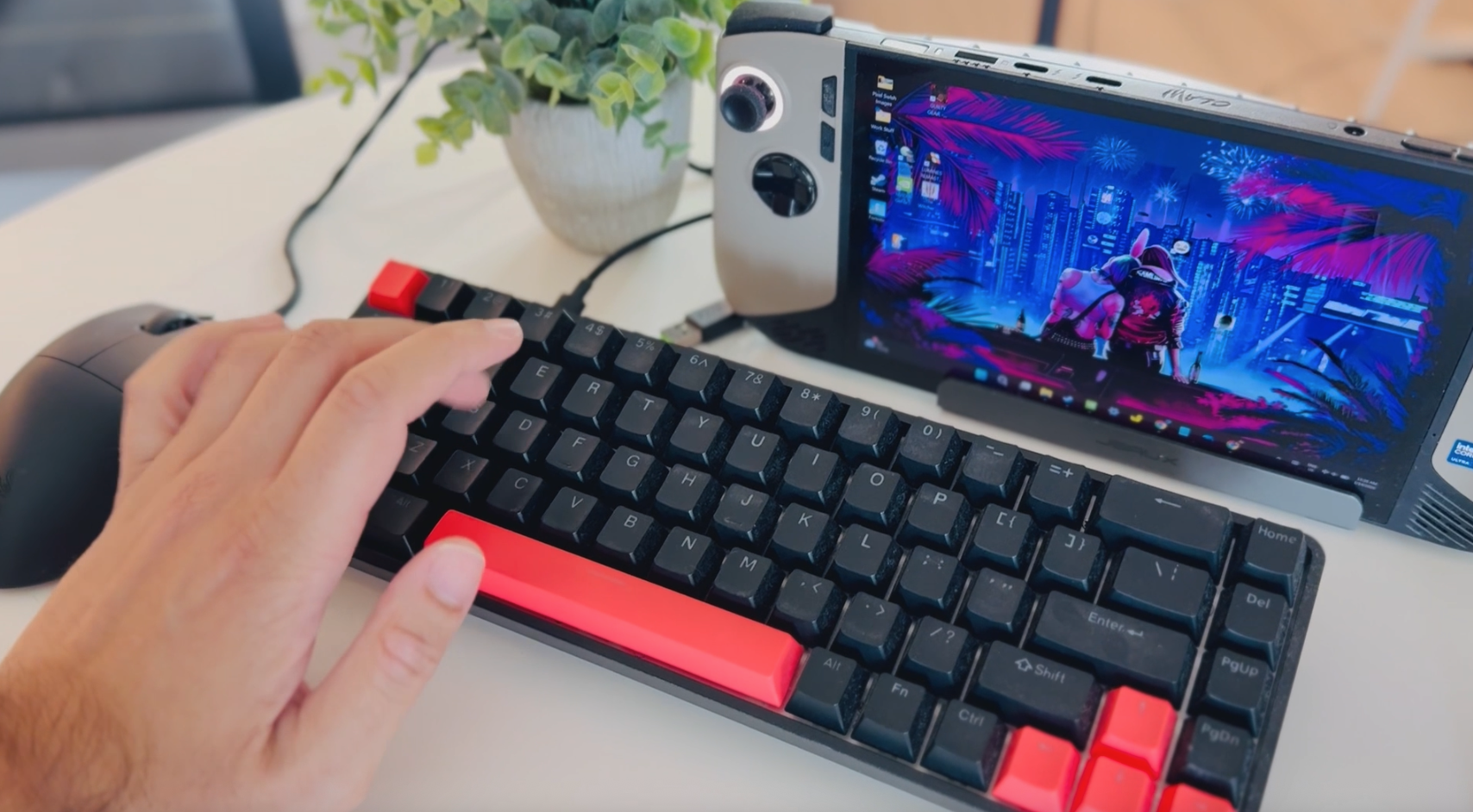
So, I went with this Hall-Effect keyboard from TMKB. It looked compact, had decent reviews, and people on Reddit said it was a solid starter mechanical keyboard that was accurate and felt good to use. And let me tell ya, as someone who’s never used a keyboard like this for an extensive period, it’s been pretty damn great over these past few months. I’ve never had a missed keystroke, and after adjusting some of the actuation settings in TMKB’s browser-based customization hub, it’s been incredibly fast and tactile. The Hall-Effect magnet switches should provide some durability as well, but we’ll see how true that holds up.
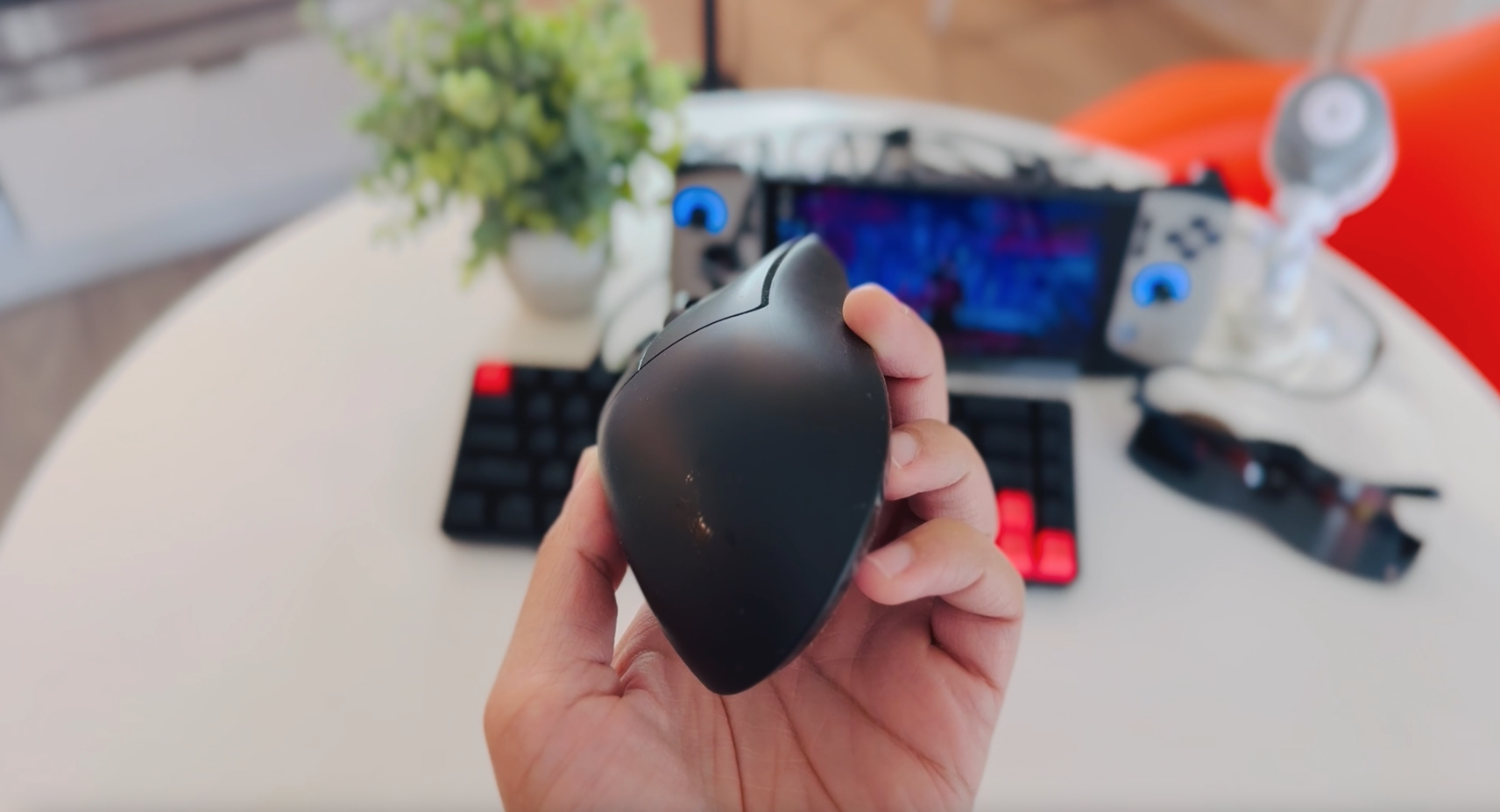
For the mouse, I went with the Razer DeathAdder V3—wired. Not for any particular reason aside from the fact that it was on sale for like $35 at Best Buy at the time of purchase, and with everything I’ve read online, it was supposed to be a great overall gaming mouse with top-of-the-line features and an amazing ergonomic feel. A few months of use later, and yeah, this is by far the best mouse I’ve ever used. It’s incredibly light, responsive, feels great in my hand, and I can see an actual improvement in my ability when playing FPS titles—I still suck, just not laughably so.
The Monitor
When it comes to the monitor, this is where I found myself in a bit of a conundrum. You see, I wanted a monitor with an OLED. But OLEDs are expensive—very expensive. However, I was fine with forgoing a higher resolution screen if it meant I still got an OLED. Because it’s not like my Claw 8 had the horsepower to play games at more than 1080p anyway. Furthermore, I needed a screen that was smaller than 27 inches because of my available desk space. A 1080p OLED monitor, with a high refresh rate for gaming, that’s smaller than 27 inches, isn’t exactly a common finding on Amazon’s listings. And the couple that do fit those configurations are these portable monitors, which are 15 inches and cost over $500. So, what to do?
Well, to find a solution for this very niche and silly “problem,” I needed to think outside of the box. And outside of that box was the world of AR glasses—specifically the RayNeo Air 3s Pro. A pair of AR glasses that can output a 1080p, 120Hz, micro-OLED at up to 201 inches. Now, that “201 inch” number is a little bit of marketing cheekiness, which I talk about in my full review here. Nevertheless, this was the solution that checked all of my needs—all for less than 500 CAD, no less.
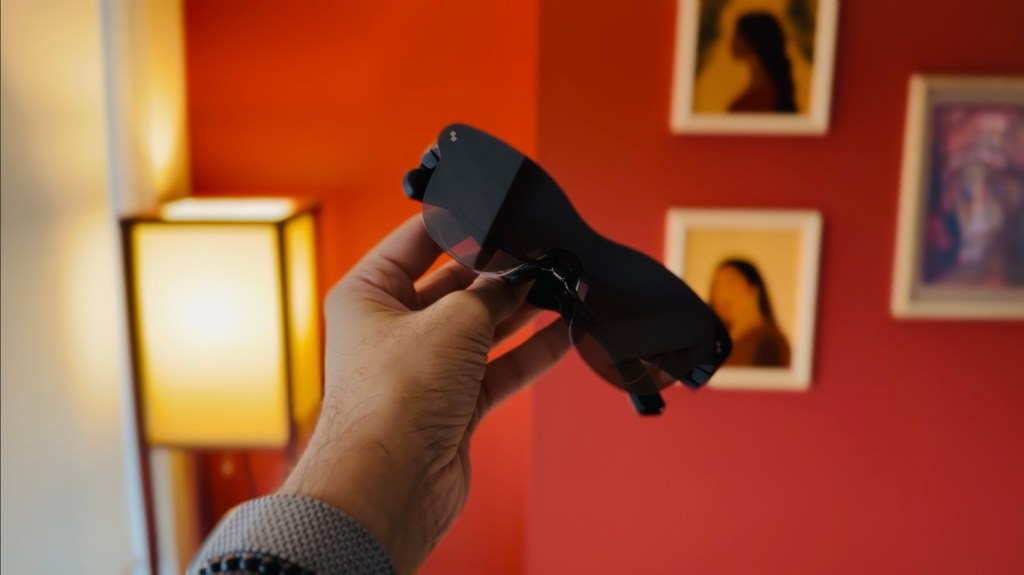
Though there are some quirks with this pair of AR glasses, I must admit that this solution made this entire setup better than I could have imagined. That micro-OLED really pops, and I’m able to get a 32-inch(ish) screen without having to worry about desk space. Again, if you’re curious about how the screen size works with these glasses, check out my full review.
The Experience
It took a few weeks to get this setup to where it felt like a natural, seamless part of my day-to-day. But once everything came together, it honestly became such a joy to use my MSI Claw 8 AI+. Waking up every day, having my morning coffee with a good book, then coming to my desk, booting up the Claw just like I would a desktop, and getting to work; then, after a day’s work, unplugging it from the dock with just one cable, and taking it to the couch to stretch my legs and play some games, is the type of flexibility that that’s made this handheld so much more than just a handheld.
Not all is perfect. Windows is still a crapshoot of an operating system, as is MSI’s software, both of which go on the fritz for a second each time I unplug the device and make for moments of high blood pressure. But, aside from those finicky moments, this has been a great experience. One that will more than tide me over until this AI bubble inevitably bursts and I can finally build a rig that won’t cost me my soul and sanity.
 Pixel Swish
Leave a comment