
Xbox hasn’t had the best…well…decade. From the years of Don Matterick saying “TV” a million times on stage during the infamous Xbox One reveal to Microsoft gobbling up game studios like Scooby snacks with no output of actual games, to now hiring a woman whose resume may as well say, “Hi, I do AI,” it’s tough to think Big Green can do something right—especially being a product of Microsoft. Well, I’m here to (cautiously) tell you that their new “Xbox Mode,” a Windows 11 feature that turns Windows into a streamlined, almost console-like experience, is actually very good. It works surprisingly well and is a bit of a game-changer for handheld gaming PCs.
If you’ve been watching or reading my work for a while, you’ll know that I’ve been daily driving my MSI Claw 8AI+ for almost a year now. It’s become not only my primary gaming console, but also my primary work computer. It’s a heck of a powerful device that’s been a joy to use over the past year. However, it does have a few quirks. I’ve banged on about how much I despise MSI’s software. Both the Game Bar and MSI Centre M are unreliable, janky, and outright frustrating to use. Though things have gotten much better and MSI has done their best to address many of the issues with several updates over the past year, and continues to support the device, the software experience still leaves much to be desired.
What I’ve learned, however, is that it’s not entirely MSI’s fault. Windows is laughably bloated and janky to use, especially on a handheld. The resources the OS takes up and how slow some of its elements are on a handheld lead MSI’s software to go on the fritz more often than not. It’s because of this janky UI experience that I’ve been unable to use my Claw 8 in one specific setup—on the couch. In handheld mode or while docked at my desk, dealing with Windows and MSI’s jank is far easier since I can use either a mouse and keyboard, or the touchscreen. I can’t deal with those same things ten feet away with a controller. This is where “Xbox Mode” comes into play.
What Is Xbox Mode?
So, if you’re unfamiliar, Microsoft launched the Xbox “Full Screen Experience” late last year. Initially, the UI was solely used in the ROG Xbox Ally and Ally X, with Microsoft later announcing that the feature would become available to other Windows-based handhelds via a beta. This “Full Screen Experience” has been available on devices like the Claw 8 for a couple of months now, but it’ll be rebranded as “Xbox Mode” when it officially launches later this month for all Windows platforms. Whether this official launch will have more features, we’ll have to wait and see. From everything I’ve read, however, it seems it’s only a naming rebrand because, well, “Xbox Mode” sounds far better than “Full Screen Experience.”
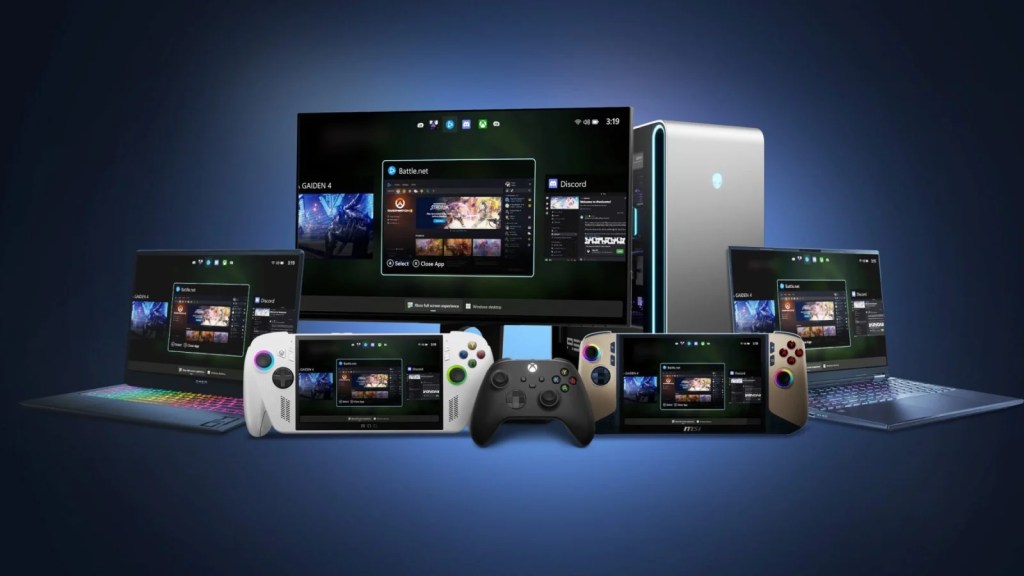
What Xbox Mode effectively does is hide all the stuff that makes Windows so clunky (which, let’s face it, is basically everything) underneath a fairly simple and clean UI. A UI that doesn’t have a taskbar or start menu; that doesn’t have a regular desktop where all of your apps sit, and doesn’t bombard you with popups from products and services you didn’t even know you had installed (though, knowing Microsoft, I’d be surprised if they didn’t somehow manage to shoehorn Copilot somewhere somehow for the official launch). Instead, when you boot up your machine, you’re launched right into the Xbox app. An app that houses all of your games across all of your different PC platforms (though there are some quirks here that I’ll get to) and one that’s fully usable with either your built-in or connected controllers.
The Experience
First, to turn on “Xbox Mode” (which, again, is still named “Full Screen Experience” as of writing), ensure you’re on the latest version of Windows 11; go to “Settings,” “Gaming,” and you should see a toggle to enable “Full Screen Experience.” You can also toggle it by clicking the top-right button within the Xbox app. Currently, when you do, you’re shown a prompt asking whether you’d like to jump into the experience right away or have Windows restart and apply some of the optimizations that come with booting into the mode fresh. I’d highly recommend doing a restart because those optimizations, even if minor, are noticeable—especially on the Claw 8, which I’ll touch upon in a bit. Just note that, currently, if you need to revert to normal Windows (which you may need to for some things), you’ll have to restart again to reapply those optimizations when returning to FSE.
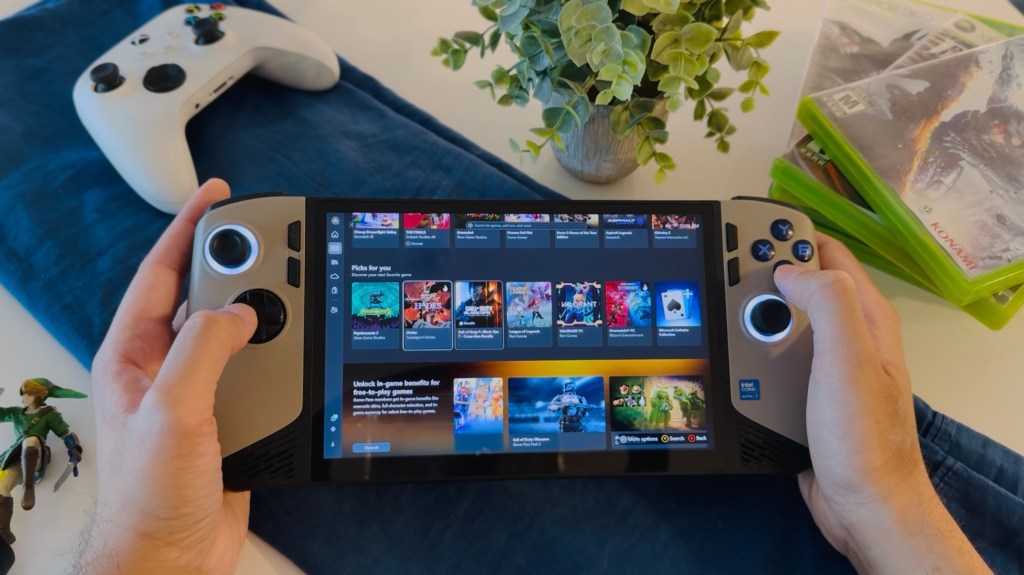
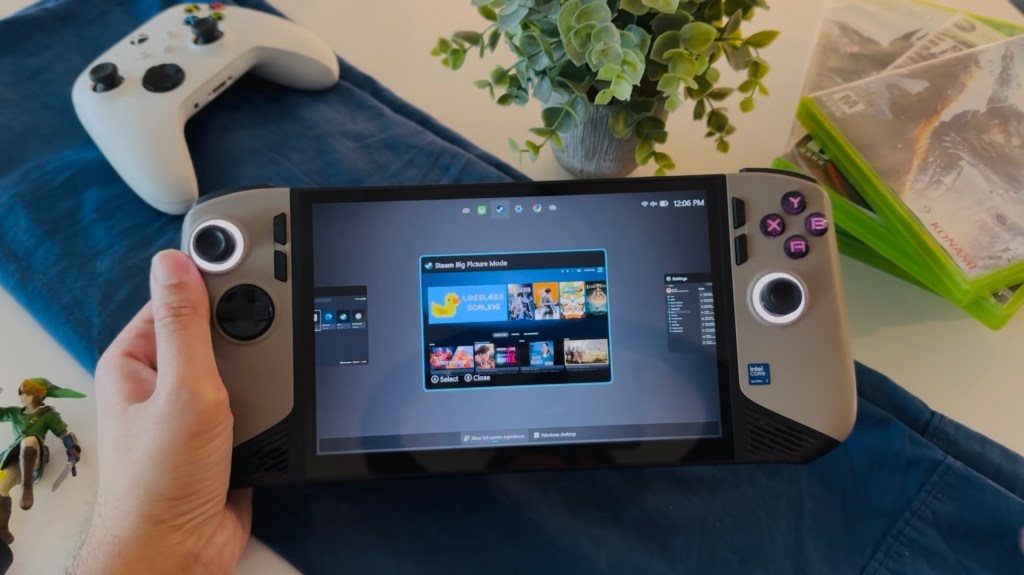
Once in FSE and in the Xbox app, things are pretty familiar. If you’ve used the Xbox app on a Windows machine, it’s pretty much the same thing here in Xbox Mode. From its layout to how you interact with the different tabs and your library, everything feels like bog-standard Xbox. This might change when the mode launches officially, but I doubt Microsoft are going to overhaul the general UI here. Now, if you’d like to get out of the Xbox app and go to, say, Steam, you can do so easily by jumping into the “My Apps” folder and clicking on Steam. Steam should open in “Big Picture Mode,” which, of course, is incredibly optimized for controllers.
Now, what if you want to jump back to the Xbox app? There’s no taskbar, and all you have is your controller or built-in gamepad, so what do you do? Well, this will differ from handheld to handheld, but on the MSI Claw 8, all I have to do is long-press the “Quick Settings” function button, which Windows has mapped to “Xbox Home,” and voila, you get a little rumble and a dashboard with all of your open apps that you can switch between. It’s simple but effective, and makes my Claw 8 perfectly usable while on a couch with a controller. I have access to all of my games from the two platforms I use the most, which I can switch between with ease, and I can short-press the “Home” button on any of my controllers to bring up the Game Bar and adjust settings as needed.
There is, however, one major issue I’ve run into while trying to play solely from my couch. When connecting my controllers, either first or third party, via Bluetooth, long-pressing the “Xbox Home” button does not bring up the dashboard. Short-pressing still brings up the Game Bar, but the long-press, for whatever reason, refuses to work. This is solved via a wired or dongle connection—which, thankfully, my third-party controller from EasySMX supports—but it’s a little frustrating that it doesn’t while on Bluetooth. It could be something I need to change in my controller binding settings, or maybe it’s an issue on MSI’s end, but at least everything works as intended via a dongle, so I’m still able to have that proper wireless controller experience.
There are still some things you can’t fully do on a controller, irrespective of your connection mode. If you need to adjust some settings on Windows, you can access the Settings app, but once in, you’re unable to navigate the menus or buttons. I’ve tried switching to “Desktop Mode” via MSI’s quick settings, which usually turns my analogue stick into a mouse cursor, but it didn’t work while in the Full Screen Experience. Other apps like using Lossless Scaling, something that I use often for more demanding titles, are not usable with a controller while in this mode. As such, I’ve had to resort to having a Bluetooth mouse handy for times when I needed to do a couple of quick clicks on an unsupported app. It’s not a big deal, but it reminds me that, at the end of the day, this is still Windows we’re dealing with.
Update: Upon further testing, it seems either Microsoft or MSI have implemented controller support for navigating Windows settings while in FSE. Though support for apps like Lossless Scaling is still missing.
There are a few other quirks, like some of my owned and downloaded games not showing up in the Xbox app. Though I much, much prefer Steam’s UI, it’d be nice if I didn’t have to switch to it every so often and simply have everything inside the Xbox app. It makes me consider simply doing all of my gaming through Steam and leaving Xbox’s platform altogether. If there’s a way for me to make it so my Claw boots into Steam’s Big Picture Mode upon FSE’s startup instead of the Xbox app, I honestly may very well do that…Sorry, Phi—I mean, Asha.
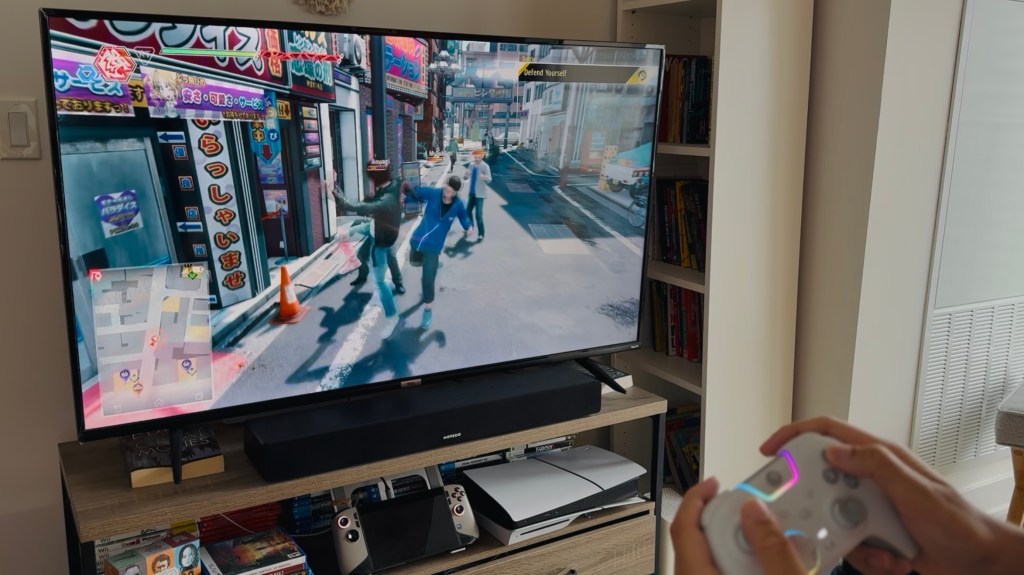
What really surprised me is how usable this mode is even outside of gaming. As someone who works pretty much exclusively through Chrome, I’m able to jump into my Chrome tabs and do my work at my desk while inside Xbox Mode, no problem. Everything runs smoothly, and the few times Chrome needs to access my desktop or documents to attach files or upload images, the windows pop up as they should without any fuss. Speaking of running smoothly:
Wait, MSI’s Software…Works?!
As mentioned, I’ve hated MSI’s software and their Game Bar integrations ever since I first purchased the Claw 8 AI+. Every time I’ve needed to adjust TDP settings or even simply adjust the screen brightness, pressing the “Quick Settings” button was pretty much a game of Russian Roulette—I’d never know if the Game Bar would show up, if it would do so 30 seconds afterwards, or crash my system altogether. Again, MSI has provided numerous updates that have made the experience bearable, but it was still far from consistent, especially on an external controller—that is, until now.
Xbox Mode makes MSI’s software consistently usable. Or, at least it makes the Game Bar consistently usable. Whether via the “Quick Settings” button on the handheld itself or the “Home” button on a controller, the Game Bar shows up without much fuss or jank pretty much every time. Sure, there may still be a hiccup now and again, but it’s a far cry from the experience I was having while on full-blown Windows. Those optimizations that take place upon restarting freshly into Xbox Mode clearly do wonders for these specific gaming-related applications.
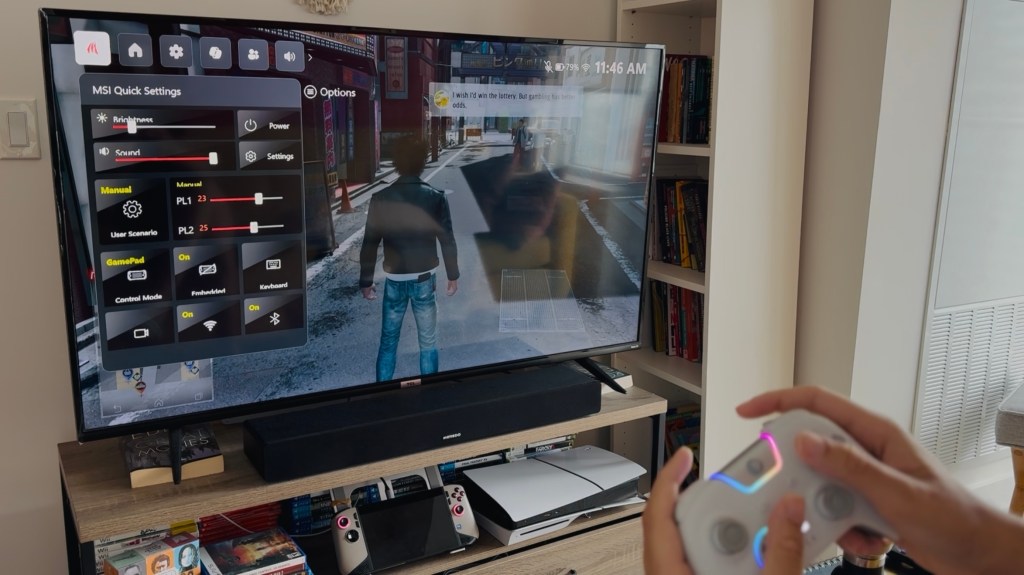
Speaking of which, games seem to get a positive uptick in performance as well while in Xbox Mode. It’s not huge, and I haven’t done any proper testing, but the extra bit of RAM the mode saves does seem to give a few extra FPS. Or, at least, fewer dips and stutters from my experience playing a variety of games.
The Verdict
It’s not perfect, but Microsoft’s “Full Screen Experience” has been quite the game-changer for me as someone who uses their handheld gaming PC as their primary console. I am now able to accomplish all three of my gaming scenarios—handheld, desk, and couch—with one device, thanks to this new feature. Hopefully, Microsoft can iron out some of the quirks with the full launch of “Xbox Mode” later this month. Having controller support for Windows settings and apps like Lossless Scaling, and making the native Xbox app a little more robust in both its presentation and feature sets, while also ensuring all of your games and downloaded apps show up properly, will go a long way to make this a great mode for couch gaming.
This is a massive step forward for a streamlined, gaming-focused Windows experience. So, good job, Microsoft. Now, please, shut up about Copilot.
 Pixel Swish
Leave a comment